
Appearance
Repositories Tree View
The Repositories panel on the left-hand side shows your repository hierarchy and lets you manage folders, Test Sets, feature files, step definitions, and payloads - all from a single tree view.
Tree Structure
- Folder
A container for Test Sets or nested folders. - Test Set
A suite of related feature files and step definitions. - Feature File
A.featurefile containing scenarios. - Step File
A reusable set of test commands. - Payload
(Test Set only) An XML or JSON payload used for AireGlu or AireFlow testing.
Context-Menu Actions
Select the 3 dots on any node in the tree to perform the following actions:
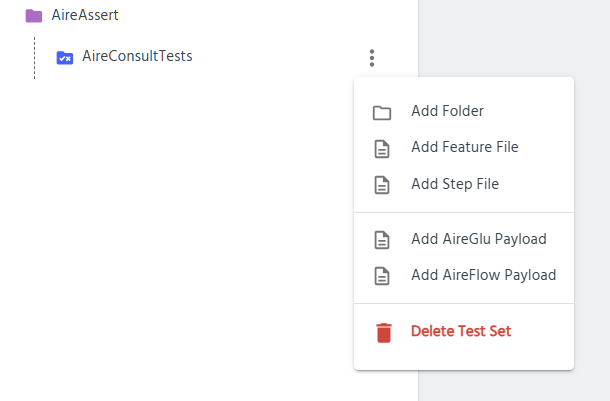
1. Add Folder
Creates a new folder under the selected node.
- Use folders to keep your Test Sets organised.
2. Add Test Set
Adds a new Test Set under the selected folder. This option is only available when selecting a folder
- This will need to be configured (see File and Test Set Settings)
3. Add Feature File
Creates a new .feature file inside the selected Test Set.
4. Add Step File
Adds a new step-definition file alongside the selected feature folder.
5. Delete
Removes the selected node (folder, Test Set, feature file, step file, or payload).
- A confirmation prompt will appear before deletion.
Test-Set-Specific Actions
When you select a Test Set node, two additional options appear in the context menu:
• Add AireGlu Payload
Creates a new payload template file in AireGluPayloads/.
- Use this for testing API-driven flows against your AireGlu instance.
• Add AireFlow Payload
Creates a new payload template file in AireFlowPayloads/.
- Use this for triggering workflows or events in AireFlow.
Saving Changes
Once you’ve finished editing the tree view, click Save Changes (or Reset to revert changes) at the bottom of the Test Editor, you will be prompted for a commit message before saving to summarise the changes.