
Appearance
AireFrame Settings
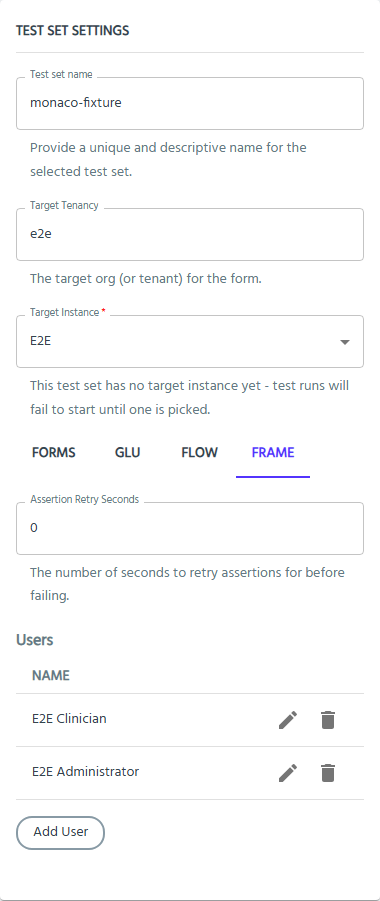
The FRAME tab of the Test Set Settings panel configures how your tests log into AireFrame and which users they can act as. These settings map to the AireFrame section of your test set's Configuration.json.
If a test set has no AireFrame configuration yet, the tab shows a single Add AireFrame Settings button. Click it to create the section, then fill in the settings below.
Assertion Retry Seconds
The number of seconds to retry subject assertions for before failing. AireFrame can take a moment to show data that has just been written, so a short retry window makes tests less brittle. Leave it at 0 to fail on the first unsuccessful check.
Users
Each user listed here can be referenced from your Gherkin, for example:
gherkin
When we login to AireFrame as 'E2E Clinician'The table lists each configured user by Name. Use the pencil icon to edit a user, the bin icon to remove one (you will be asked to confirm), and Add User to add another.
See AireFrame Commands for the full set of commands these users can drive.
Adding or editing a user
| Field | Description |
|---|---|
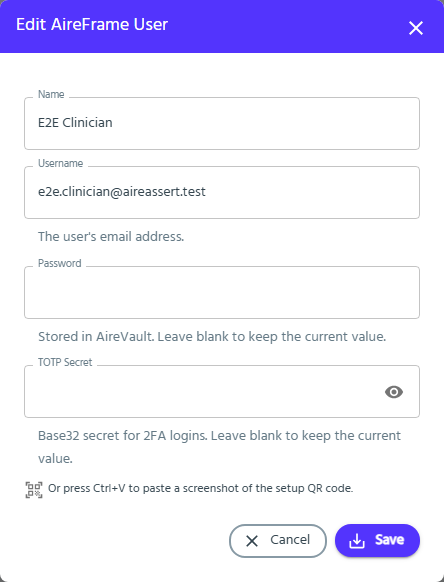
| Name | A short, readable alias for the user. This is the name you use in your Gherkin, so keep it stable once tests refer to it. |
| Username | The user's AireFrame login, which must be an email address. |
| Password | The user's password. Stored in AireVault, never in your repository. |
| TOTP Secret | The Base32 secret used to generate 2FA codes, for users who have two-factor authentication enabled. Also stored in AireVault. |
How passwords and TOTP secrets are stored
Both secrets are written straight to AireVault when you click Save, and are never written into Configuration.json — so they are never committed to your Git repository.
Two consequences worth knowing:
- The test set needs both a Target Tenancy and a Target Instance, both in General Settings, before secrets can be stored, because together they identify where in AireVault the secret belongs. The dialog will tell you if either is missing.
- Both fields are always shown blank when you open the dialog, because a stored secret cannot be read back. Leave a field blank to keep its current value, and only fill it in when you want to replace what is stored.
Note: If a test set already carries a password or TOTP secret in plaintext in its
Configuration.json, that value takes priority over AireVault when tests run. Saving a secret through this dialog clears the plaintext value for you, so the value you just stored is the one that gets used.
Reading a TOTP secret from a QR code
Rather than transcribing a 32-character secret by hand, you can take the QR code straight from AireFrame's two-factor setup page:
- In AireFrame, start setting up two-factor authentication for the user. The page shows a QR code alongside the key in text form.
- Take a screenshot of that page and copy it to your clipboard.
- Open the user in AireAssert and press Ctrl+V anywhere in the dialog.
AireAssert reads the QR code, fills in the TOTP Secret field, and shows the secret in plain text so you can check it against the key printed next to the QR code. Nothing is uploaded — the image is read in your browser.
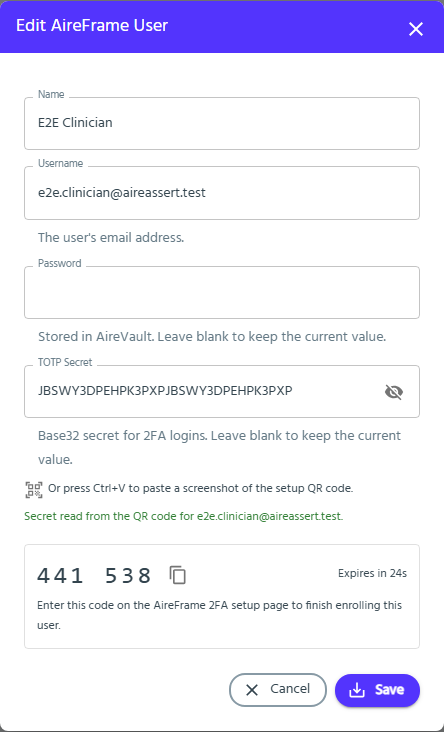
The panel underneath shows the current 6-digit code for that secret, with a countdown to the next one and a button to copy it. AireFrame's setup page asks you to enter a code to confirm enrolment, so you can complete the setup from here without adding the user to an authenticator app first.
Click Save once you are happy with the secret. The code panel is only a convenience — it is generated in your browser from the secret in the field and is not stored anywhere.
Checking you scanned the right user
Because a TOTP secret is a meaningless string, scanning the wrong QR code out of a busy screenshot is easy to do and hard to notice — the tests simply fail to log in later. AireAssert reads the account name out of the QR code and shows it back to you, and warns when it does not match the username on the user you are editing:
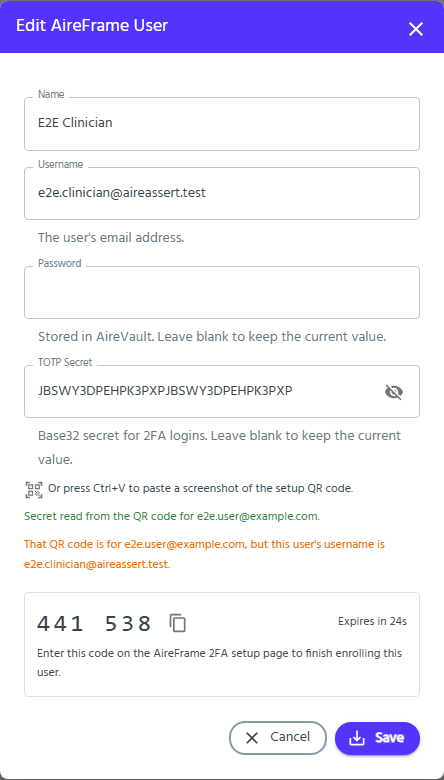
This is only a warning, not a block: the name on the QR code and the AireFrame username can legitimately differ. Check it before saving.
QR codes AireAssert cannot use
AireAssert generates 2FA codes using the standard settings that AireFrame issues — SHA1, 6 digits and a 30-second period. If a QR code asks for anything else, it is rejected with a message naming the problem rather than being stored, because the stored secret would generate codes that never work. The same applies to counter-based (HOTP) authenticator codes, which AireAssert does not support.
If no QR code can be found in the image, try a screenshot cropped more tightly around the code.
Entering a secret by hand
You can still type or paste the secret instead. Both forms that AireFrame shows are accepted:
- the plain key, for example
JBSWY3DPEHPK3PXPJBSWY3DPEHPK3PXP - the spaced form printed next to the QR code, for example
JBSW Y3DP EHPK 3PXP JBSW Y3DP EHPK 3PXP
Spacing and letter case are tidied up for you when you leave the field. A TOTP secret must be Base32, which means only the letters A–Z and the digits 2–7; anything else is rejected when you save. You can also paste the full otpauth:// link if you have it.
Use the eye icon at the end of the field to show or hide whatever is currently entered.